LeagueApps: Player User Guide and FAQs
Team Details & Schedule
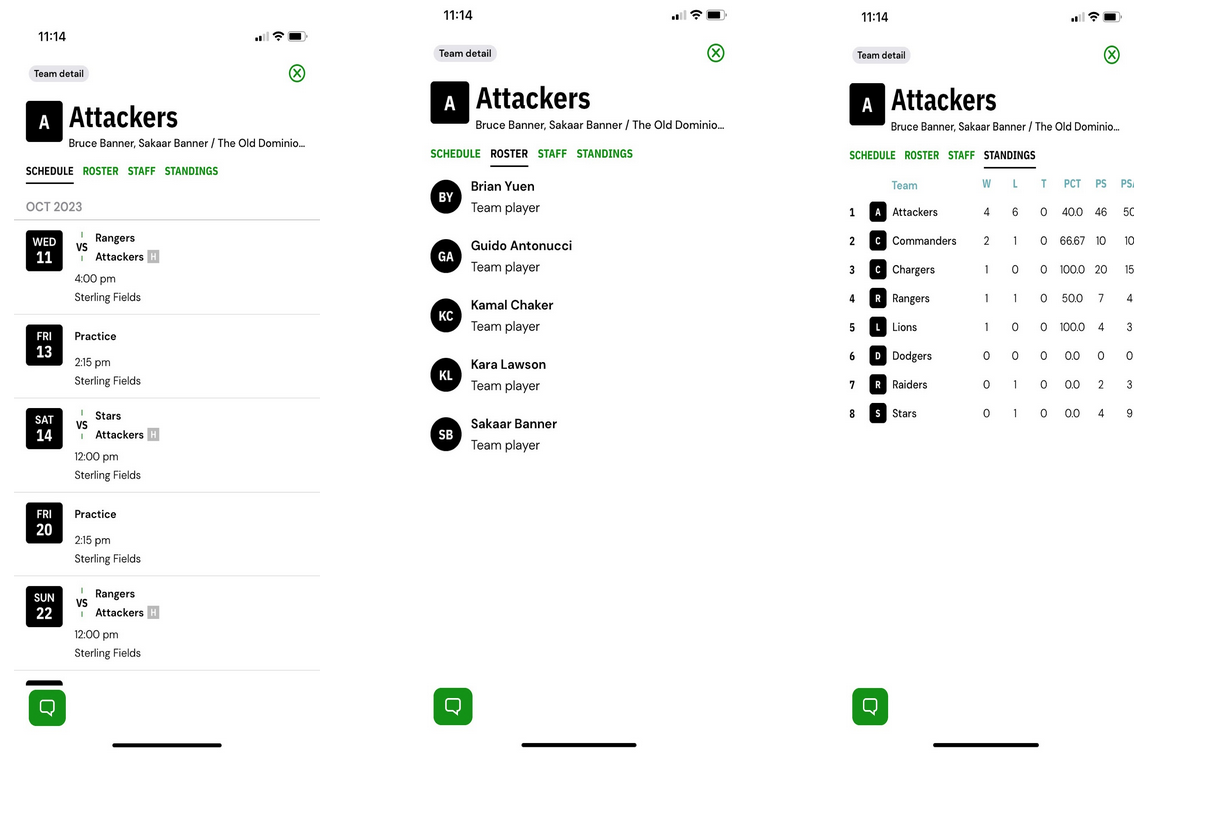
If you tap on a team shown in your schedule, you are able to view the Team details page, which includes the Team Schedule, Roster, Staff, and Standings.
RSVPs + Check-Ins
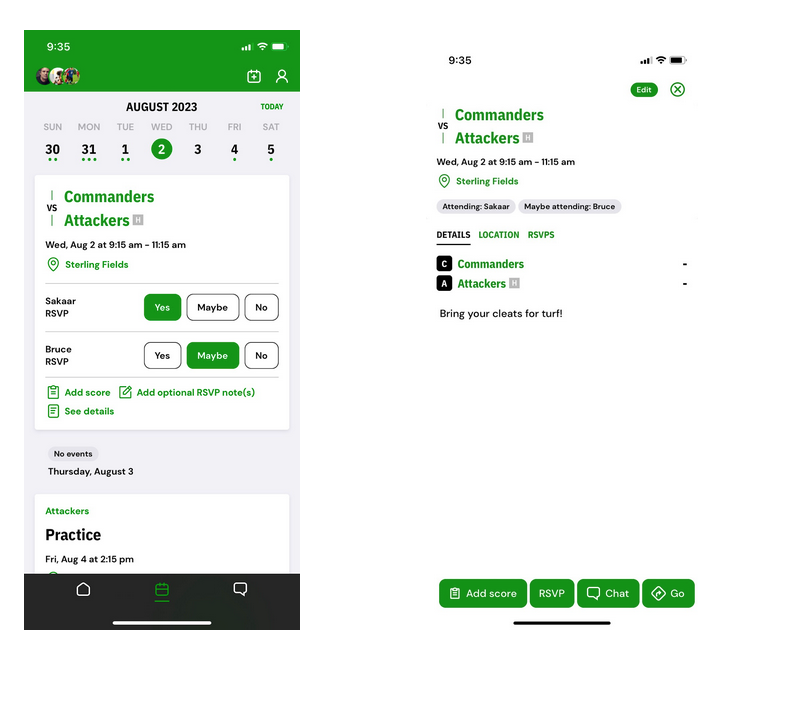
RSVP to share your availability for practices, games or any team events in the Schedule Calendar. From a calendar event click the RSVP icons to submit your response. You can tap any event to see the event details, location, and RSVP.
Team Roster Details & Contacting Teammates
In the Home and Schedule tabs, click on the team listed on the event.
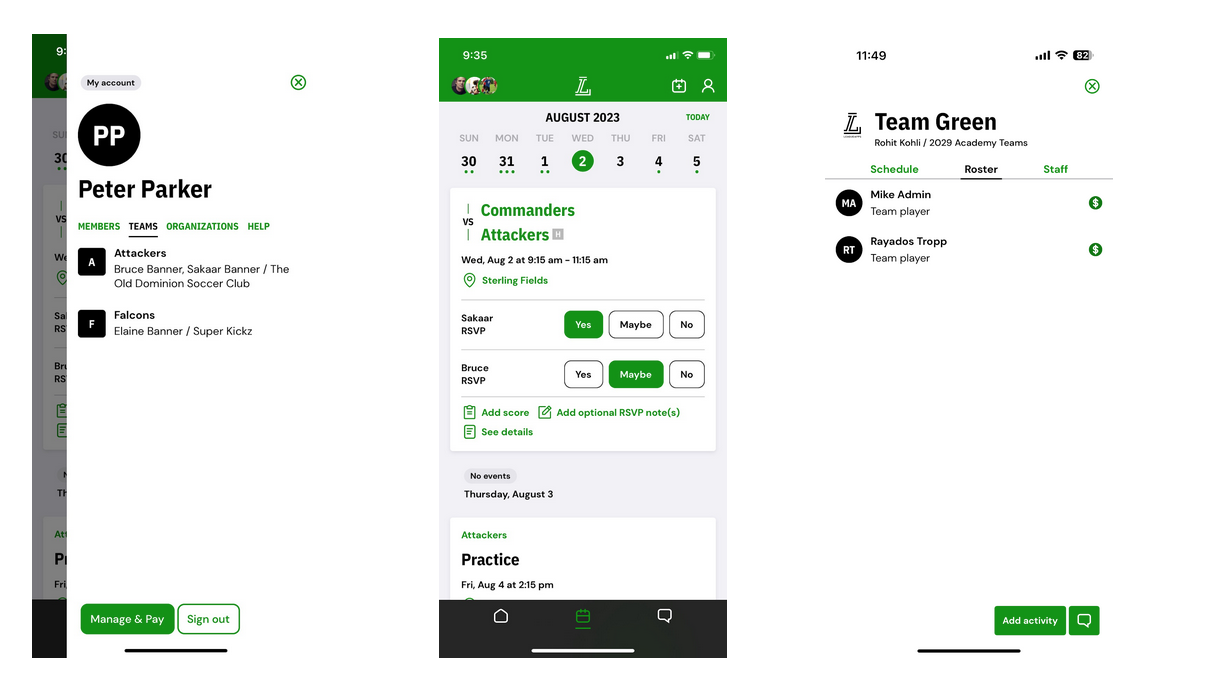
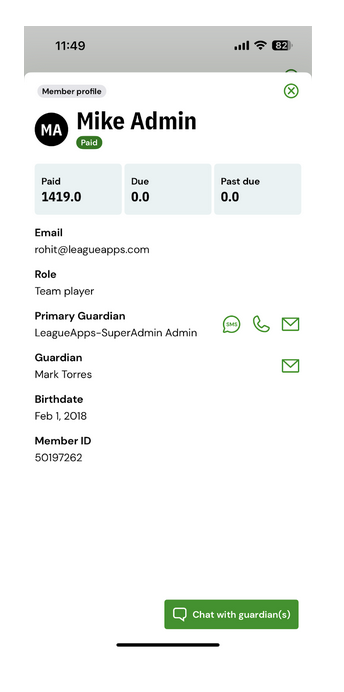
From the roster, you can contact a player directly by clicking on the name and then choose the desired communication and included method [Call, Chat, or Email.]
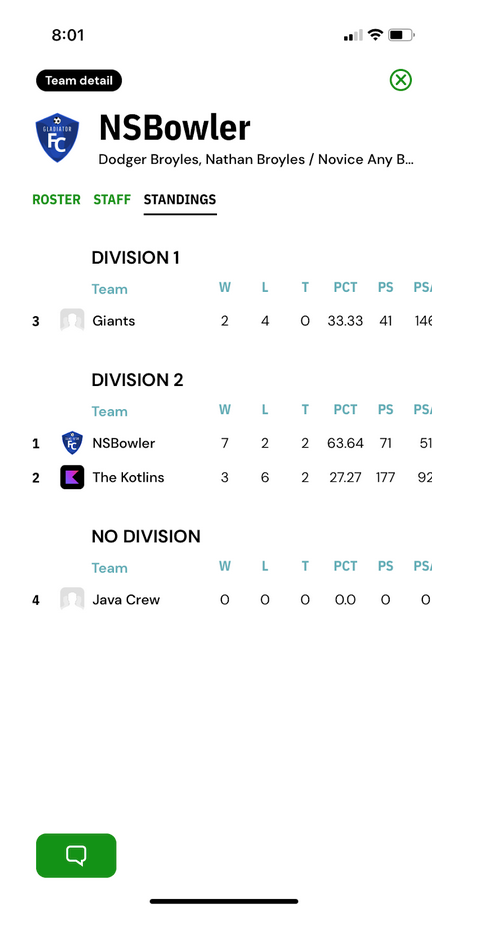
Check your teams standings
In the Standings tab, you can view all teams belonging to programs with Standings enabled. Standings fields that the program organizer has configured will appear as columns in standings.
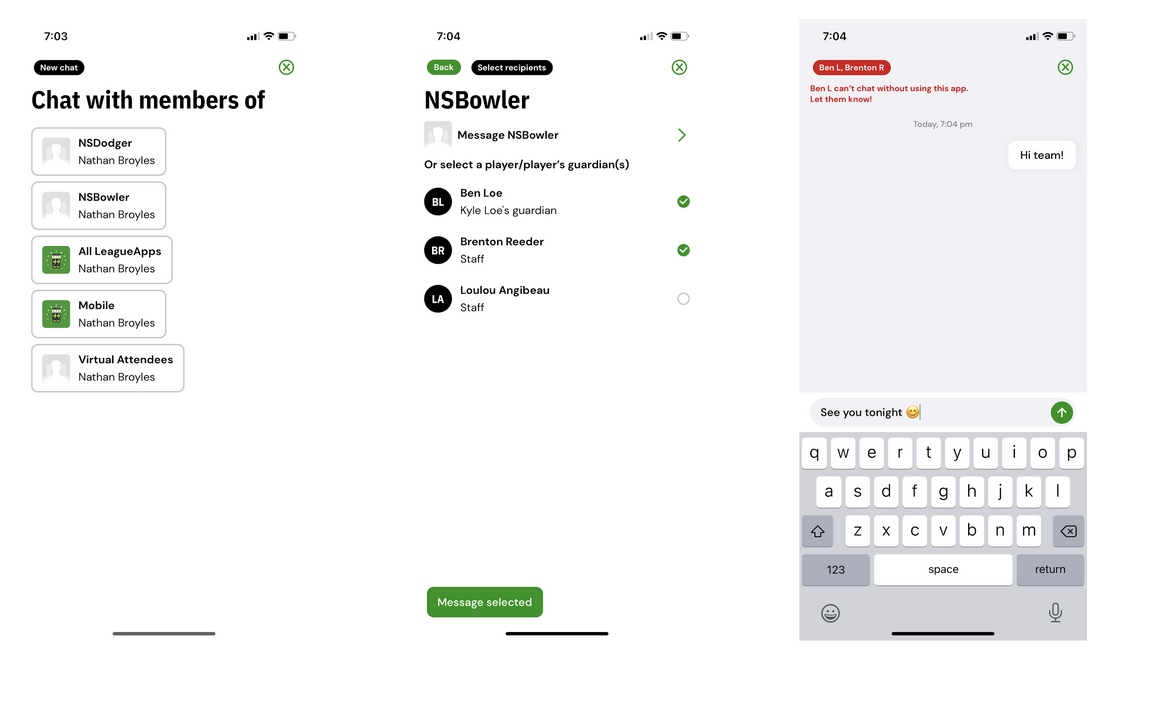
Team Chat on League Apps
In the Chat tab, you are able to click the ➕ sign in the top right corner to chat message with the whole team as well as individuals on the team, including staff and parents.
Important: Chat recipients must have also downloaded this mobile app with chat in order to see the chat messages sent to them.
You will receive a push notification on your phone when you are sent a new chat message in the app.
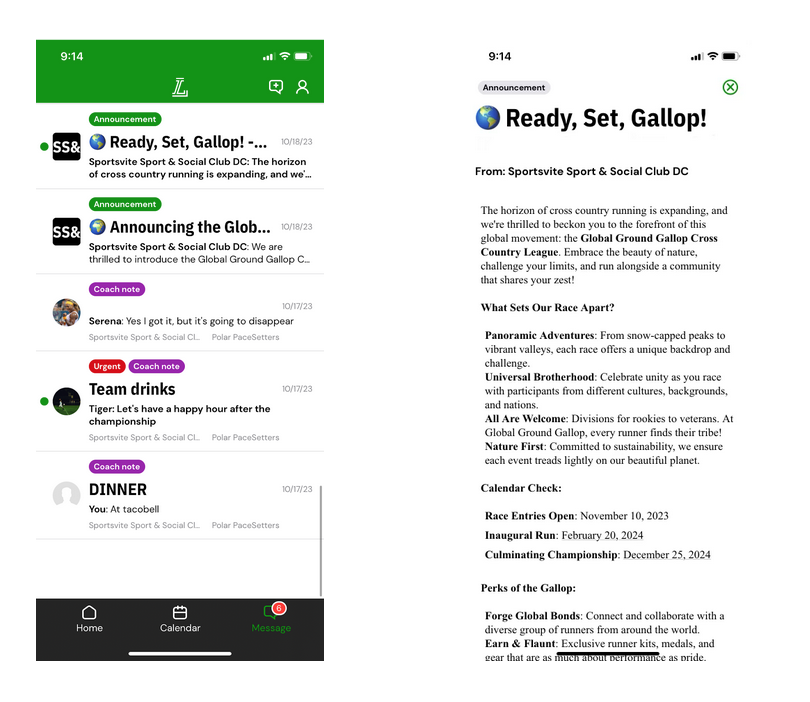
Announcements
The Collective may send important messages, called Announcements. These will be sent as an email, a push notification to your phone, and will also appear in the Home tab and your Message tab.